
Got your TRN? How to switch Fatura Sahla to VAT registered
Your VAT certificate has arrived. Here is what changes on your invoices, and the short review that moves your verified business from not registered to VAT registered.
What changes when you become VAT registered
Until now your invoices were commercial invoices. You were identified without a VAT TRN, and your lines carried no VAT. Once you are VAT registered you issue tax invoices instead. Article 59(1) requires the Tax Registration Number of the Registrant making the supply, together with the words “Tax Invoice”, the rate of tax on each line and the tax amount in AED. That is a different document, not the old one with a VAT column added.
Fatura Sahla picks the invoice type from your verified VAT status. That keeps the switch in one place: your business details. You do not change a setting on every invoice, and there is no separate VAT feature to turn on. Change the status once, through a review, and every new sale follows it.
What to have ready
- Your VAT registration certificate from the Federal Tax Authority, as a PDF or a clear photo. It shows your 15-digit TRN and the date your registration takes effect.
- The account owner's login. Staff and viewers can see the verification status, but only the owner can submit a change to the business's legal details.
You do not need your trade licence again. Keep the certificate next to you while you work: we read the VAT status, the TRN and the effective date from it, and you check them against the original.
Step 1: open Business Information and tap Update VAT registration
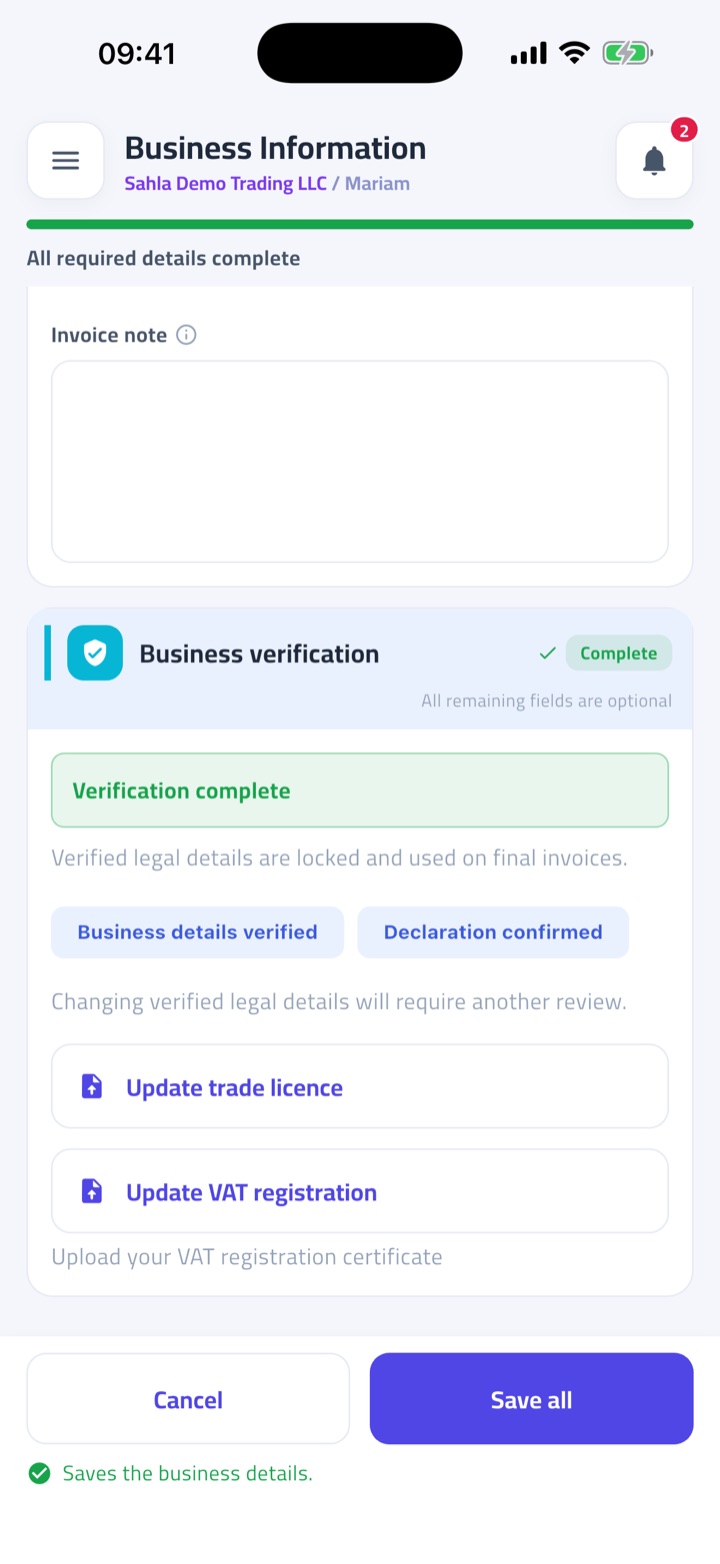
Open the menu and tap Business Information, then scroll to the verification panel. A verified business sees “Verification complete”. Its legal details, including the name, the VAT status and the TRN, are locked, because final invoices print them. That is why the change goes through a review. A verified business that is not yet VAT registered sees Update VAT registration on this panel. Tap it, then upload your VAT registration certificate.
Step 2: check the scanned VAT details
We read the certificate and open the Review VAT registration sheet. Check that VAT registration status shows VAT registered, that the TRN matches the certificate digit for digit (15 digits, no spaces or dashes), and that the VAT effective date is the one printed on it. Fix anything we read wrongly or missed. Never type a guessed or borrowed TRN to get past an empty field; a wrong number on a tax invoice causes more trouble than a late one.
If you have other papers that help the reviewer, such as the FTA registration letter, tap Add supporting documents (optional). You can add up to 5 documents, and you can remove them until you submit.

Step 3: confirm the declaration and submit for review
Confirm the declaration and tap Submit for review. You stay verified and keep invoicing as before while we review: the panel shows that your VAT update is in review, and your invoices are not held. Until the update is approved, new sales are still issued under your old, not-registered status. Our review compares the new details against your certificate. If something needs changing, the panel tells you what, and you can correct it and submit again. When the update is approved, your locked legal details show VAT registered with your TRN.
After approval: your first tax invoice
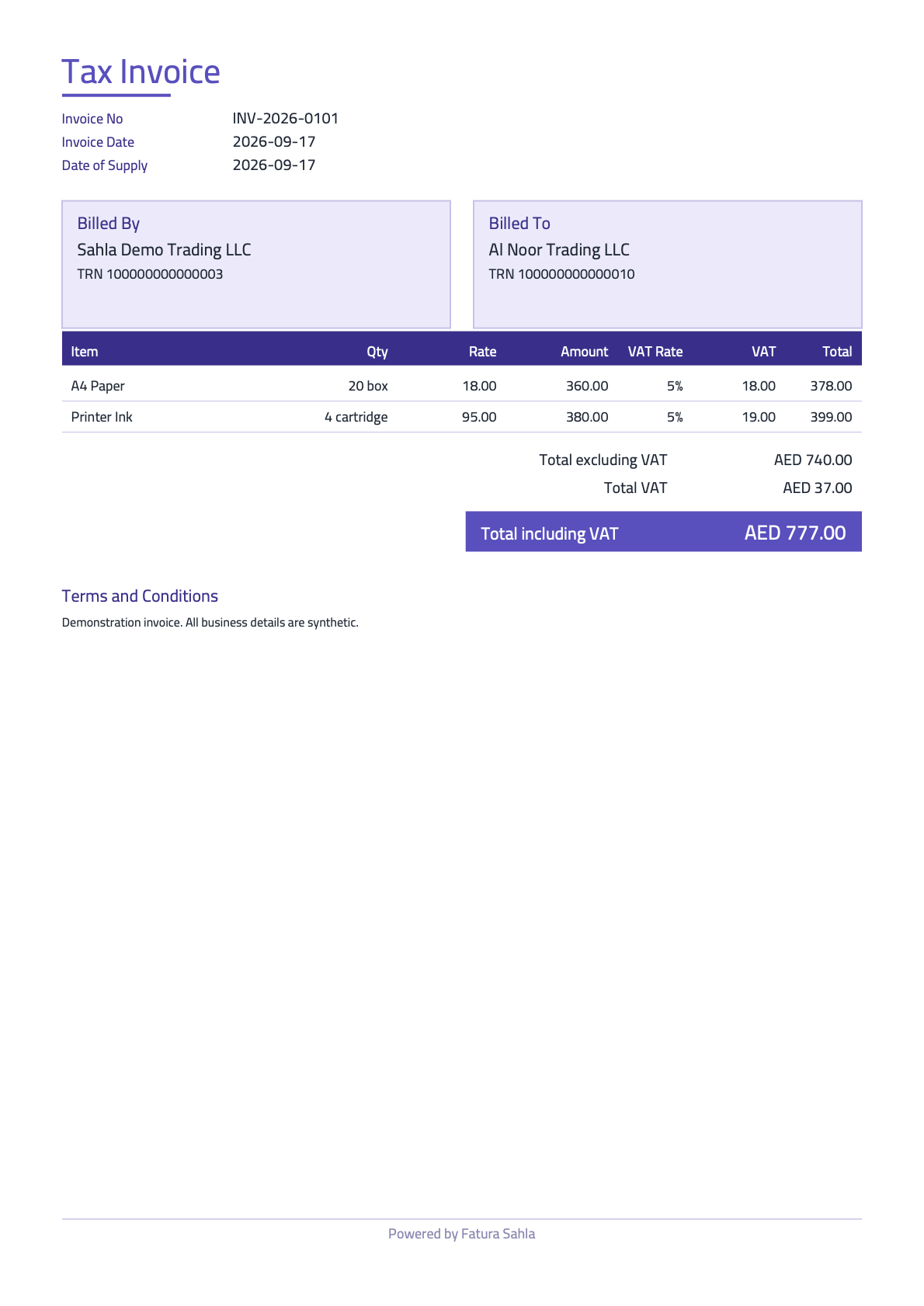
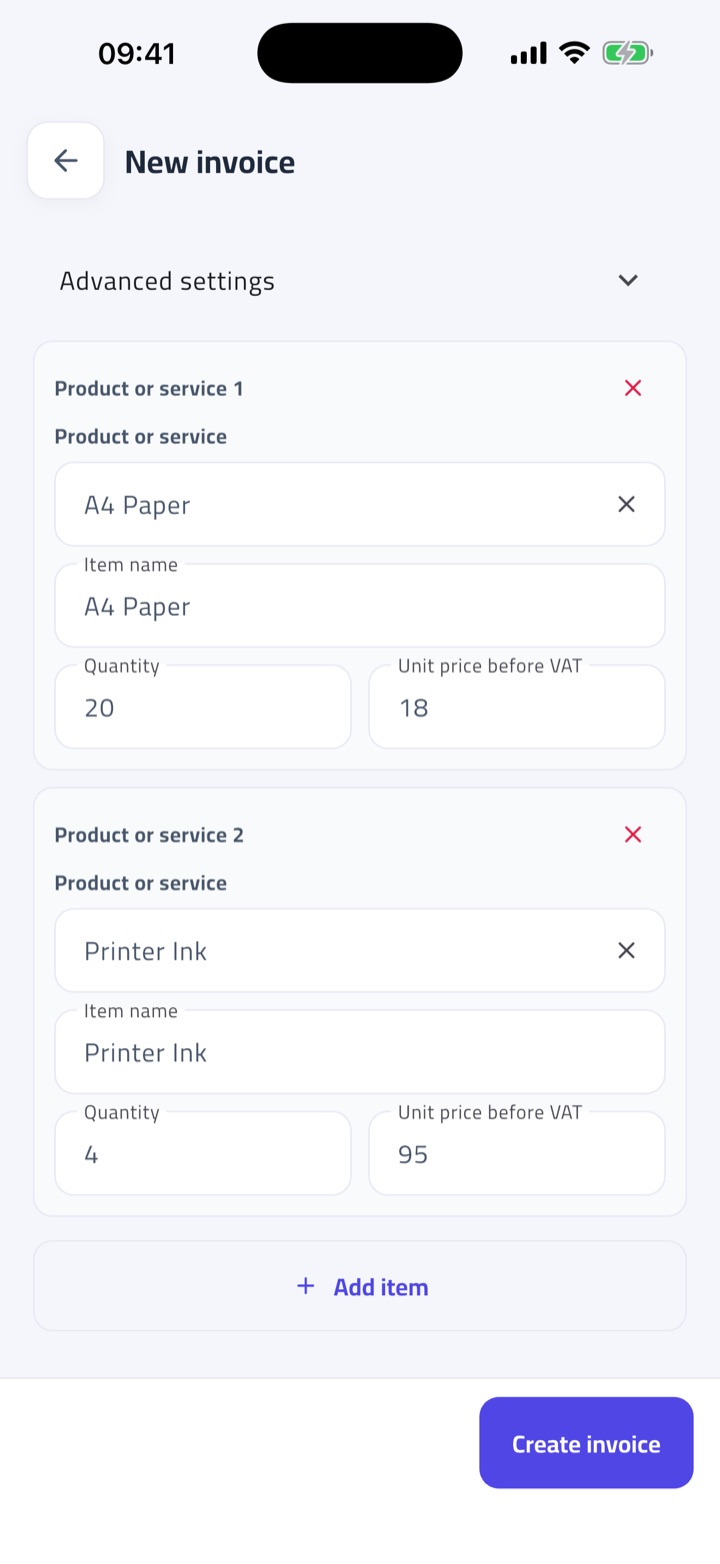
Create a sale the way you always do. The invoice is now a tax invoice: it is titled Tax Invoice, shows your TRN under your business name, and calculates VAT on each line with the totals in AED. Your customers, products and earlier invoices are all still there; nothing is re-entered.
Products keep their own VAT treatment. Before your first VAT sale, open your products once and check that each one carries the treatment that is true for it. An invoice whose lines contradict your VAT status can still be saved as a draft, but it is held back from compliant status until the lines are fixed.
Invoices dated before your registration takes effect
Your certificate shows the date your registration takes effect. Invoices for supplies made before that date were issued while you were not registered, and they stay as they are. Do not edit them just because you now have a TRN.
Sometimes the effective date is earlier than the day the certificate arrives, so a few invoices can fall in between. Ask your accountant how to treat those before you correct anything. Fatura Sahla keeps every invoice you issued, so the history is there for that conversation.
Questions owners ask
Do I need a new account?
No. You keep the same account, users, customers, products and invoice history. Only your verified legal details change, and only after the review is approved.
Can I keep invoicing during the review?
Yes, as before. You stay verified and keep invoicing while the update is in review. Sales you issue in that window follow your old, not-registered status; once the update is approved, every new sale is issued as a tax invoice.
Does Fatura Sahla register me for VAT or file my returns?
No. You register for VAT with the Federal Tax Authority, and returns stay with you and your accountant. Fatura Sahla prepares your invoices and records. It is not an Accredited Service Provider and does not send invoices to the Federal Tax Authority.
What if the TRN we read differs from my certificate?
Type the TRN printed on your certificate. The review page submits what you confirm, not what we read, and our review checks it against the certificate.
How Fatura Sahla helps
Fatura Sahla takes the invoice type from your verified VAT status, so one reviewed change switches every new sale to a tax invoice with your TRN, while your customers, products and invoice history stay as they are.
We meet you where you are, and get you e-invoice-ready with near-zero overhead.
Your sales live in notebooks, spreadsheets and sales people in the field
Photograph the paper, import the sheet, or type it in. Every path ends in one complete record, checked in plain words.
A computer, a smartphone, a tablet, or a simple phone with WhatsApp
Works in the browser and on Android and iPhone. Send an invoice photo to WhatsApp and get the finished PDF back in the chat.
A team that reads English, Arabic, Urdu, Hindi, or a mix of them
The app, the WhatsApp replies and every check speak all four. Invoices print in English or Arabic, whatever the team uses.
Fatura Sahla helps you get ready. It is not an Accredited Service Provider and does not send invoices to the Federal Tax Authority. This article is general information, not tax advice.
Last reviewed November 3, 2026